 Linda Park
Office Timeline Review: Is It Worth the Money for Project Presentations?
November 22, 2025
I'd been manually nudging shapes around in PowerPoint for probably three hours on a single timeline slide before Chris mentioned this tool. I was skeptical – I've tried a lot of these add-ins and most of them just create new problems. But I ran a real project through it and had something presentation-ready in about nine minutes, which was genuinely surprising. The question isn't really whether it works. It's whether what it does is worth the cost for how often you actually need it.
What Is Office Timeline?
Office Timeline is a Gantt chart and timeline maker that works as a PowerPoint add-in for Windows and as a web-based app. It's designed for project managers, consultants, marketers, and anyone who needs to present project schedules to stakeholders without making them fall asleep.
The tool transforms your project data into professional-looking visuals that communicate milestones, deadlines, and project phases clearly. You can import data directly from Excel, Microsoft Project, Smartsheet, Jira, or Wrike, which saves a ton of time if you're already managing projects elsewhere.
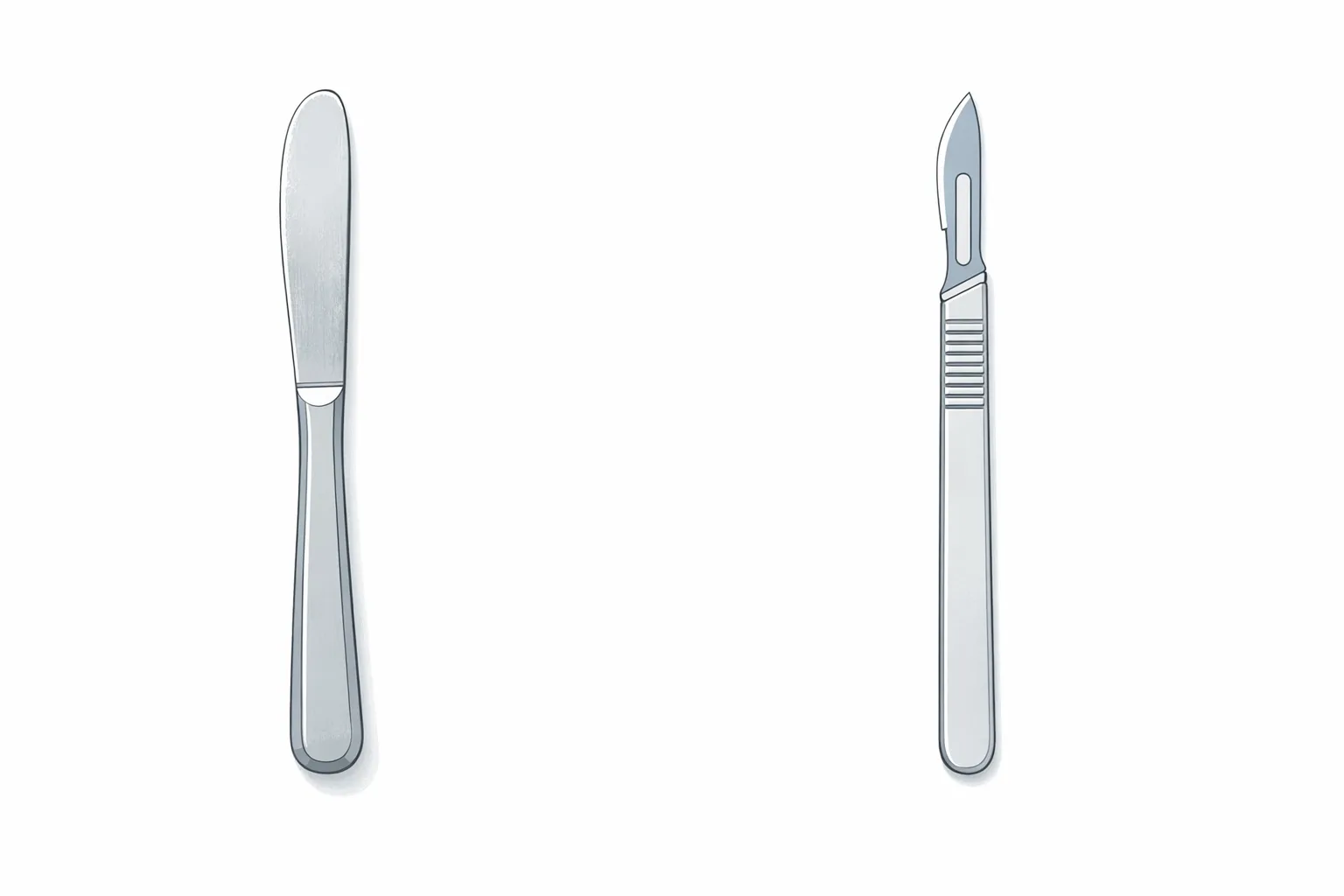
Look, if you've ever tried to build a Gantt chart natively in PowerPoint, you know it's like performing surgery with a butter knife. Office Timeline exists because Microsoft never bothered to fix this obvious gap in their own software.
What makes Office Timeline different from full project management platforms is its singular focus: creating presentation-ready timeline visuals. It lives inside PowerPoint as a native add-in, so every timeline you create is actually a PowerPoint slide that anyone can view and edit-even if they don't have Office Timeline installed.
Office Timeline Pricing Breakdown
Here's what you'll actually pay:
Gerald looked at our bank statement last night and asked why I subscribe to so many things. I told him it's just how work is now.
Office Timeline Add-in (for PowerPoint)
- Free: Basic timeline creation with limited templates and features (capped at 10 items, displays watermark beyond that)
- Lite: $108/year per user - Essential features for simple timelines
- Plus: $149/year per user - Adds swimlanes, custom templates, multiple timescales
- Expert: $199/year per user - Everything plus dependencies, critical path, and Planned vs. Actual tracking
Office Timeline Online (Web App)
- Free: Limited online timeline maker (account inactive after 90 days of no use, 10-item limit with watermark)
- Premium: $149/year per user - Full web-based timeline creation with up to 150 rows of data import
All paid plans are annual subscriptions billed per user. No monthly options. If you need multiple licenses for a team, you'll need to pay for each person individually. The good news? You can upgrade mid-subscription and only pay the prorated difference between your current and new plan.
The jump from Plus to Expert is steep, and honestly, most teams won't need Expert unless someone in leadership has a hard-on for critical path analysis. The "Online" tier feels like they're charging you twice for convenience.
Key Features That Actually Matter
The add-in lives inside PowerPoint, which sounds like a small thing until you realize it means I didn't have to learn a new interface or export anything. There's an extra ribbon tab, and you build directly in the deck. When I sent slides to Stephanie, she could edit them without having the tool installed. That part worked exactly as advertised.
The setup wizard walked me through my first timeline in about nine minutes. I was expecting the usual enterprise plugin experience where something crashes or the pane won't load. It didn't fight me. I've had worse luck with native Microsoft features.
The import is where I spent the most time early on. I pulled data from an Excel sheet with about 60 rows, mapped the columns to tasks, milestones, and swimlanes, and the output was clean on the first try. The sync feature is genuinely useful if your source data keeps changing. I updated the sheet, hit sync, and the timeline reflected it without any manual re-entry. That saved me probably 25 minutes per update cycle on a project I was running weekly status reports on.
Swimlanes I used on a cross-functional rollout where I needed to separate work by team. You can nest lanes inside parent lanes, which I didn't expect to need until I actually needed it. The hierarchy read clearly in the slides without looking overcrowded. Chris reviewed the deck and didn't ask me to clarify anything, which is usually a good sign.
The planned versus actual tracking is on the higher tier. I used it for a project that ran about three weeks long on two phases. You can style the variance bars differently so it's obvious at a glance where things drifted. In practice, Derek looked at the slide for about four seconds and asked why the dates slipped. So the visual did its job, even if the conversation still happened.
Dependencies and critical path are also higher tier only. Once I enabled it, connecting tasks was drag and drop. It calculates the critical path automatically. I found it most useful for explaining to non-project people why one delay was actually a problem, rather than just a slipped date on a Gantt nobody reads carefully.
The templates cover a reasonable range of industries. I used one from the IT category as a starting point and restyled it in under ten minutes to match our internal look. On the higher tier you can build a brand theme and share it across the team so everyone's output looks consistent. I set one up for Tory and Jamie so we stopped getting decks with four different font sizes showing up in the same review meeting.
Overall the tool does what it says and doesn't create extra work in the process. For anyone already living in PowerPoint, the learning curve is close to zero.
How Office Timeline Compares to Manual PowerPoint Timelines
I used to build these in PowerPoint the manual way. SmartArt, Process, pick a layout, start typing. For a three-item timeline it's fine. For anything with real dates and more than a handful of milestones, it falls apart fast.
The core problem is that SmartArt doesn't know what a date is. You're visually faking proportional spacing by dragging shapes around. When Chris came back and said a phase shifted by two weeks, I was manually repositioning every element downstream. That happened more than once.
What I actually ran into with the manual approach:
No import path. Every task typed by hand. No pulling from a spreadsheet, no syncing anything.
Updates are painful. One date change can mean repositioning six things. It compounds.
Swimlanes and dependencies don't exist. You're faking them with shapes and hoping they hold when someone resizes the slide.
With the software, I rebuilt a project timeline I'd originally spent about three hours on. Took me 22 minutes, including cleanup. The dates actually drove the layout. That part specifically was the difference.
For something you're updating every week, the manual method stops being viable pretty quickly.
What's Good About Office Timeline
I'm not someone who gets excited about PowerPoint add-ins. But this one actually changed how I work on project slides. The first timeline I built took maybe eight minutes, including importing the task list. The same thing used to take me the better part of a morning.
The positioning is the part that matters. It places everything based on actual dates, so I'm not nudging shapes around by hand trying to make the spacing look right. That alone would have sold me.
Updates stopped being a thing I dreaded. I pull in fresh data, hit refresh, and the timeline reflects it. Tory asked me to update a recurring status deck mid-week and it took maybe four minutes instead of the usual back-and-forth of reformatting.
The learning curve is basically nothing. It lives inside PowerPoint. I figured out what I needed in one session without opening a help doc.
The complex stuff holds up. Swimlanes, dependencies, multi-track layouts – I was skeptical, but it handled a project structure I would never have tried to build manually.
What Sucks About Office Timeline
Windows only for the add-in. I do most of my work on a Mac now, so I was living in the web app the whole time. It's fine, but it's not the same experience. Some of the formatting controls you'd want for a polished slide just aren't there. I ended up finishing things on Chris's machine more than once, which got old fast.
No real-time collaboration. Tory and I were both working on the same timeline for a client presentation and we basically couldn't. We fell back to one person owning the file and the other sending notes. It worked, but it wasn't the tool doing that for us.
Support availability is limited. I hit a sync issue on a Sunday evening before a Monday morning meeting. There was nobody to contact in real time. I figured it out myself, but that's not always going to be an option.
Per-seat pricing compounds quickly. I ran the math when we were considering it for the broader team. Five people would run us somewhere around $850 a year, and that's before you've confirmed the tool actually fits how your team works.
It's visualization, not project management. I kept wanting it to do things it doesn't do. No resource tracking, no assignments, nothing like that. Once I stopped expecting that, it made more sense, but the learning curve was mostly unlearning the wrong expectations.
The free tier runs out fast. I hit the item cap on my second real timeline. From that point it was either pay or start over with something else.
Annual commitment only. No monthly option. You're in for the year whether the project lasts that long or not.
Installation and Setup
Getting started with Office Timeline is straightforward. For the Windows add-in, you download the installer from their website, run it, and the add-in appears as a new tab in your PowerPoint ribbon.
Jamie thanked me three times for forwarding him an email. The kid means well. Gerald says his father should let him fail more often.
If you purchase a paid plan, you receive a unique product key via email. Click "Upgrade" in the Office Timeline ribbon, enter your key, and the servers validate your license for one year.
For Office Timeline Online, it's even simpler-just create an account, log in through your browser, and start building. The web version works on Mac, Windows, and even Chromebooks, making it the go-to option for Mac users who want Office Timeline functionality.
Who Should Use Office Timeline?
This one is pretty clearly built for a specific kind of person. If you're presenting project timelines to executives or clients more than a couple times a month and PowerPoint is already your default, it fits without much friction. I had a timeline updated and re-exported in about four minutes after a milestone shifted – that would have taken me the better part of thirty minutes doing it manually.
It works well if your projects stay under a hundred or so tasks and your data is already living in Excel, MS Project, or Smartsheet. The import handled that cleanly. And if you're not a designer but need slides that don't look embarrassing in a client meeting, that's genuinely where it earns its keep.
It's probably not for you if: your projects have complex dependencies across large teams, you need real-time collaboration on the timeline itself, or you only pull something like this together a few times a year. The price is harder to defend on light usage. Chris on our team hit that wall pretty fast and went back to doing it by hand.
Office Timeline Alternatives Worth Considering
If Office Timeline doesn't fit your needs, here are some options:
Gerald made me coffee this morning without asking. That almost never happens. I didn't say anything, just took it.
GanttProject - Free and open source, runs on Windows, Mac, and Linux. Good for basic Gantt charts without the cost. Lacks the PowerPoint integration but works well for standalone project planning.
I'll be blunt: most alternatives either look prettier but lack PowerPoint integration, or they're full-blown project management suites that require a theology degree to understand. Office Timeline sits in a weirdly specific niche, which is both its strength and why they can charge what they do.
Preceden - Web-based timeline maker starting at around $12/month. Easier to use with more customization options according to some users. Better if you're creating standalone timelines rather than PowerPoint slides.
Monday.com - Full project management platform with timeline views built in. Better if you need actual project management, not just visualization. Check out our Monday.com pricing breakdown and Monday.com review.
Smartsheet - Another full PM tool with Gantt capabilities. Office Timeline actually integrates with it, so you could use both-manage your project in Smartsheet and create presentation slides with Office Timeline.
TeamGantt - Web-based Gantt chart software with real-time collaboration. Better for teams that need to work together on schedules, not just present them.
Vizzlo - Online timeline generator that works as a PowerPoint add-in. Alternative approach to Office Timeline with different template styles and pricing.
Free PowerPoint templates - If you only need occasional timelines, free templates might be enough. They're just more manual to update and lack data import capabilities.
Real User Feedback
I've tested enough project tools to know when something is actually saving time versus just feeling like it does. This one fell into the first category. A timeline I'd been rebuilding manually every week – about two hours each time – took me 23 minutes the first time I used it, and that included fumbling through the import.
The Excel import worked the way it's supposed to. I didn't have to reformat anything. It pulled the data and dropped it into a usable structure. Tory saw the output before a client call and asked if I'd hired someone to redo our slides.
That said, the free version has a hard cap that makes it mostly useless for anything real. I hit it faster than expected. And if you're on a Mac and used to working inside PowerPoint directly, the web version is functional but it's not the same – you notice the difference.
The swimlane and dependency features are there, just locked behind a higher tier. Whether that's worth it depends on how often you actually need them.
Security and Compliance
For organizations concerned about data security, Office Timeline provides several reassurances. The PowerPoint add-in processes data locally on your machine-nothing gets uploaded unless you choose to use cloud features.
Office Timeline Online uses TLS and AES-256 encryption for data in transit and at rest. The platform is GDPR-compliant and hosted on Microsoft Azure infrastructure, meeting enterprise security standards.
However, Office Timeline doesn't offer API access or single sign-on (SSO) integration, which some enterprise IT departments prefer for user management.
The Bottom Line
This tool does one thing, and it does it without drama. I was spending probably 45 minutes rebuilding the same timeline slide every time scope shifted, which was constantly. Now that same update takes me around eight minutes. That's not a guess – I timed it a few rounds in because I wanted to know if I was actually saving time or just feeling like I was.
What it is not, and I want to be clear about this, is a place to manage work. If you go in expecting to assign tasks or track who's doing what, you'll be frustrated inside of ten minutes. Derek made that mistake and came back annoyed. It's a visualization layer. You bring the data, it makes the slide look like someone cared about it.
The free version is genuinely usable if your timelines are simple and you don't have a lot of items. I tested it on a smaller project first and it held up fine. The middle tier is where most people will land – the swimlane support alone is worth it if you're presenting across more than one workstream, and the import function behaved the way I expected it to, which is not always a given.
If you're only pulling this out a few times a year, the subscription probably doesn't pencil out. Use the free SmartArt, it's fine for that. But if you're in front of stakeholders regularly and the timeline slide is always the one that looks like it was made in a hurry, this fixes that problem without requiring much from you.